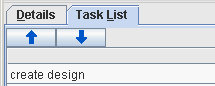
You can move tasks up and down, up is considered higher priority,
by pressing Ctrl+Up and Ctrl+Down, poping up a menu or clicking
on these buttons:
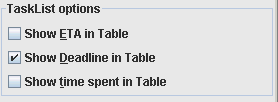
You can add and remove optional fields to the list by clicking
on options button, then selecting those fields:
You can sort by added fields, just click on field's header:
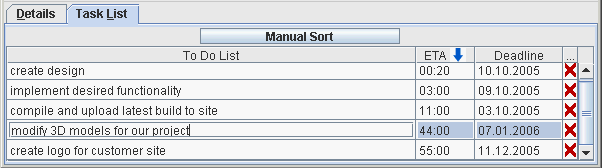
To have reverse sort - click again on the same header, to go
back to priority sort, click on "manual sort" button,
or one more click to the header.
By clicking on Details tab, you can edit additional Notes for
the task, set deadline and ETA for it and view how much time you
have spent working on it:
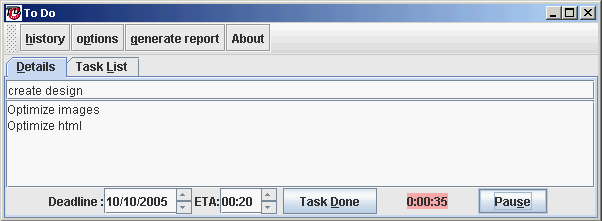
To start a task you should click on button "Start"
in Details tab, then you'll see that timer becames pink and "Start"
button is transformed into "Pause" button, by clicking
on the same button you can pause and resume task. If you finished
task then click on "Task Done" button and next task
will be loaded. If "autostart next task" is selected
in options, then your task will start automatically.
BriskTodo can also autostop task if you have
left your computer or forgot to click on "pause", by
detecting mouse movements. To enable it you should click on options
and select it:
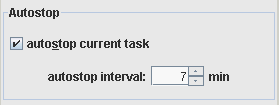
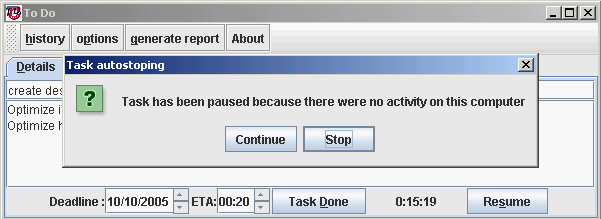
then choose an interval after which task will be paused and you'll
be prompted to continue it:
By clicking on "history" button you'll se monthly report,
with possibility to navigate to previous/next month and to see
how much you have worked each month and each day. By clicking
on "generate report" button you'll be able to generate
a text file report for a given period of time.
You can Download and use
BriskTodo for free right now.